

Install the App
HockEyes can be installed like a native app on your phone or computer. Once installed, it opens from its own icon in full-screen, without the browser's address bar, and keeps you signed in between visits.
iOS (iPhone / iPad)
This only works from Safari — other iOS browsers can't add HockEyes to your home screen.
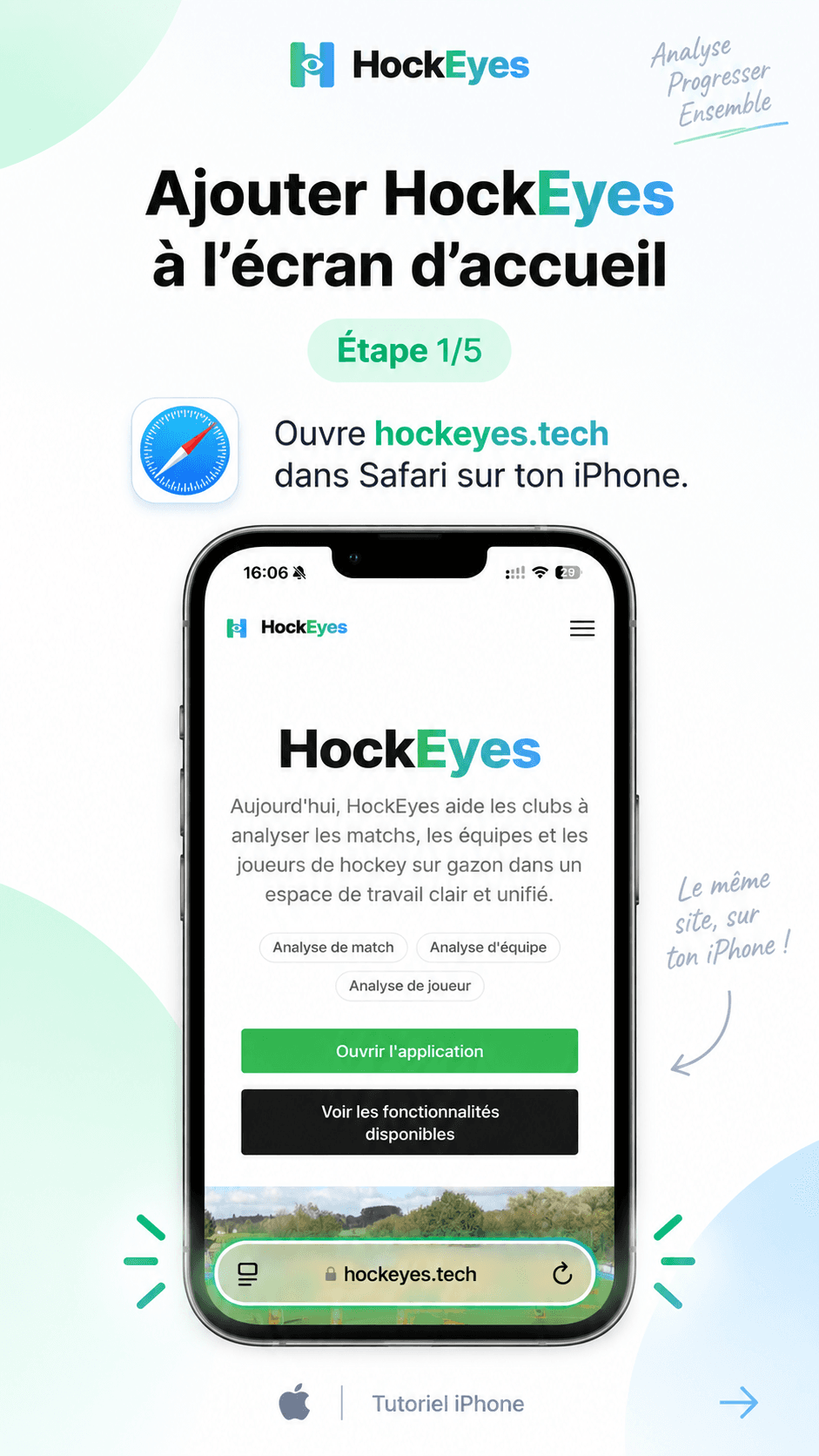
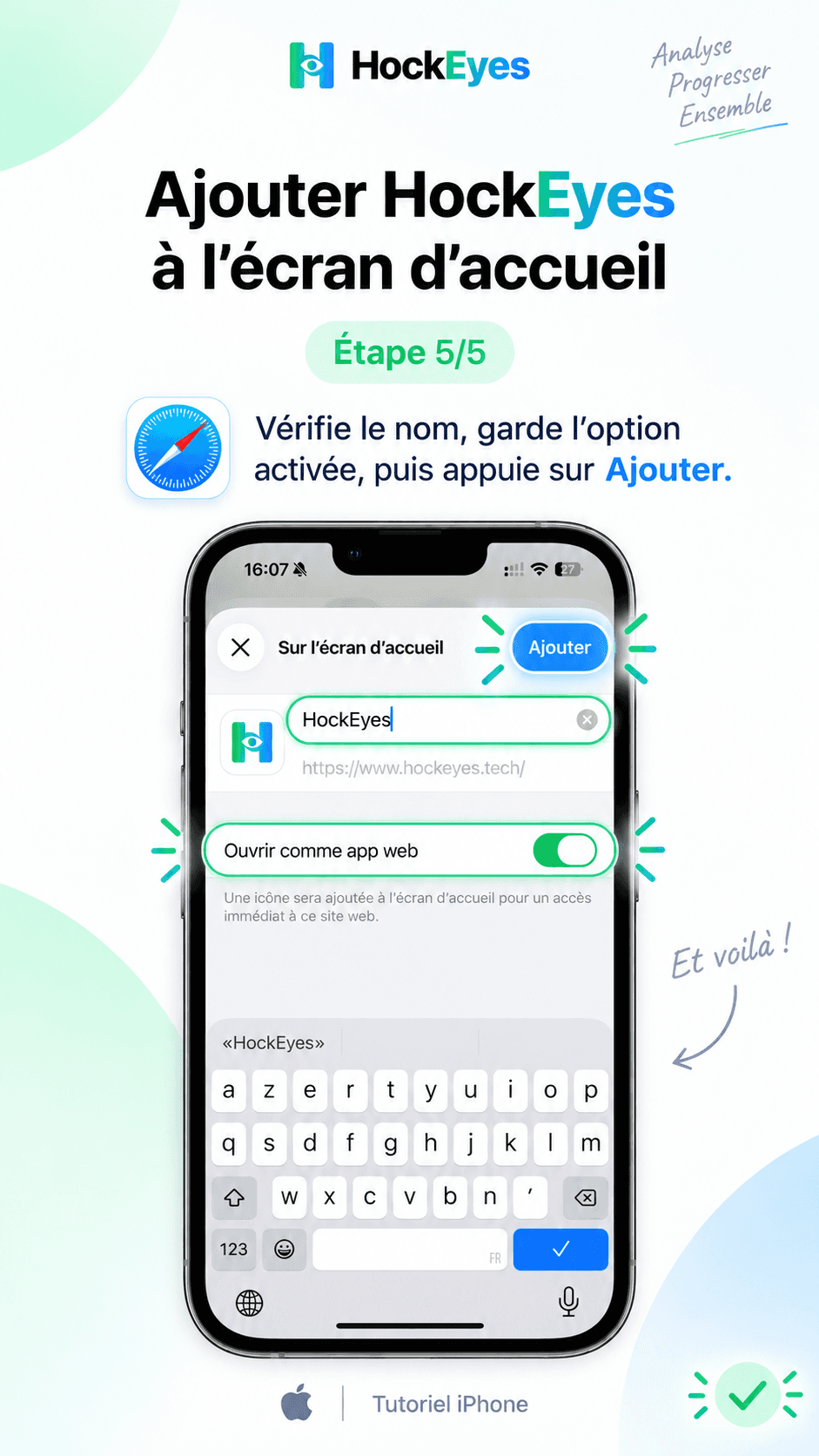
- Open hockeyes.tech in Safari.
- Sign in first, so the installed app opens already signed in.
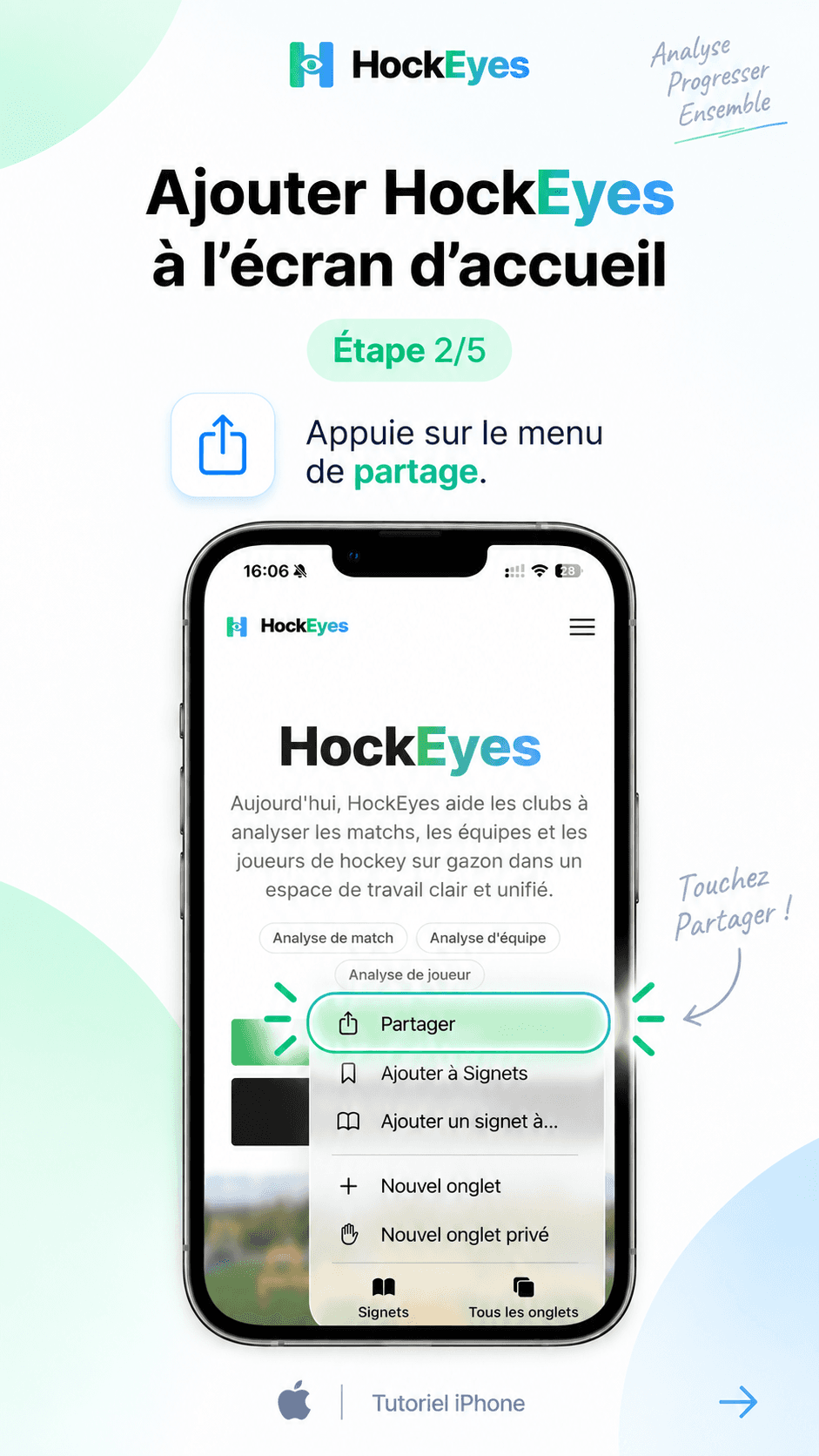
- Tap the Share icon (square with an arrow) in the toolbar.
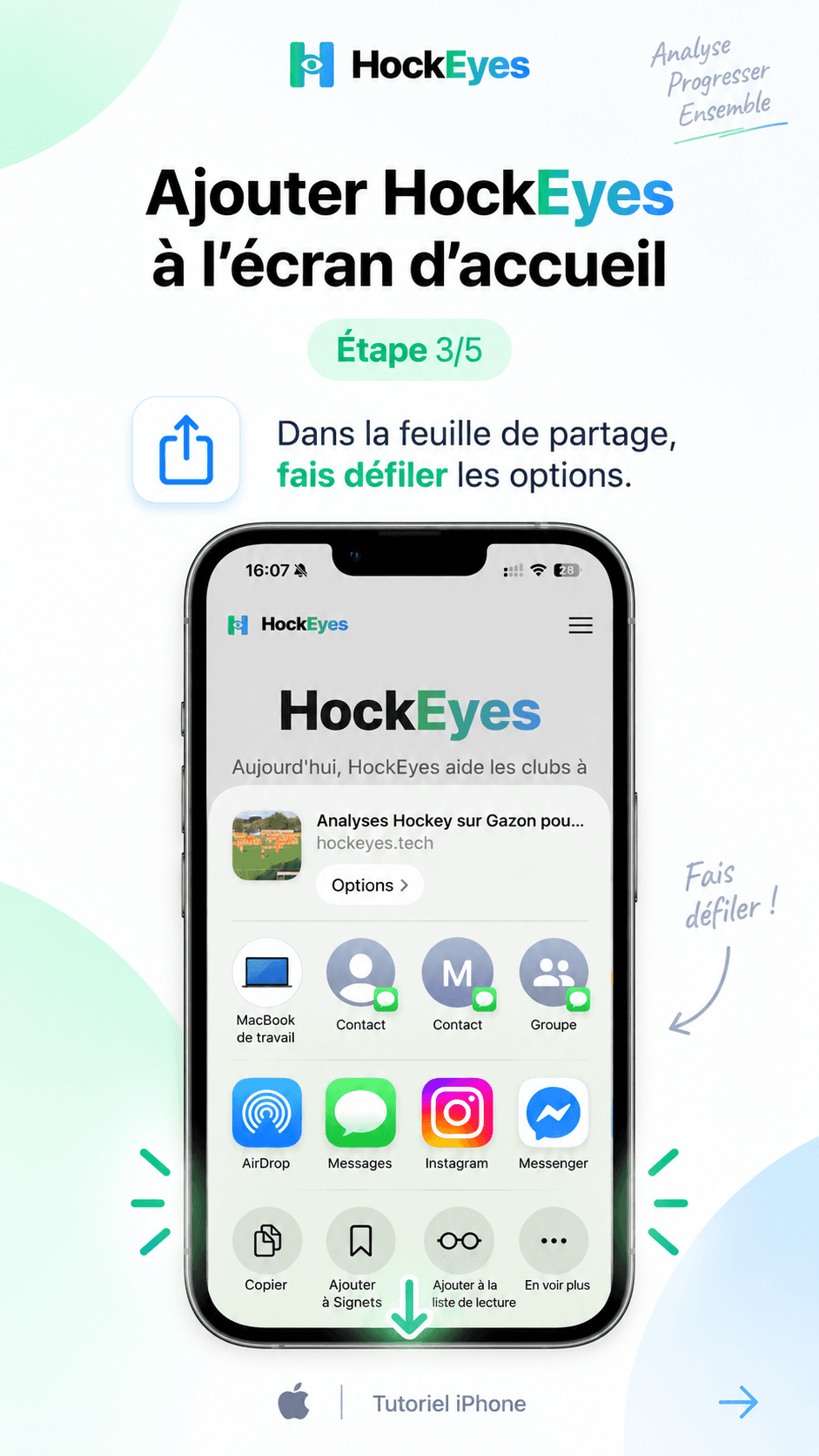
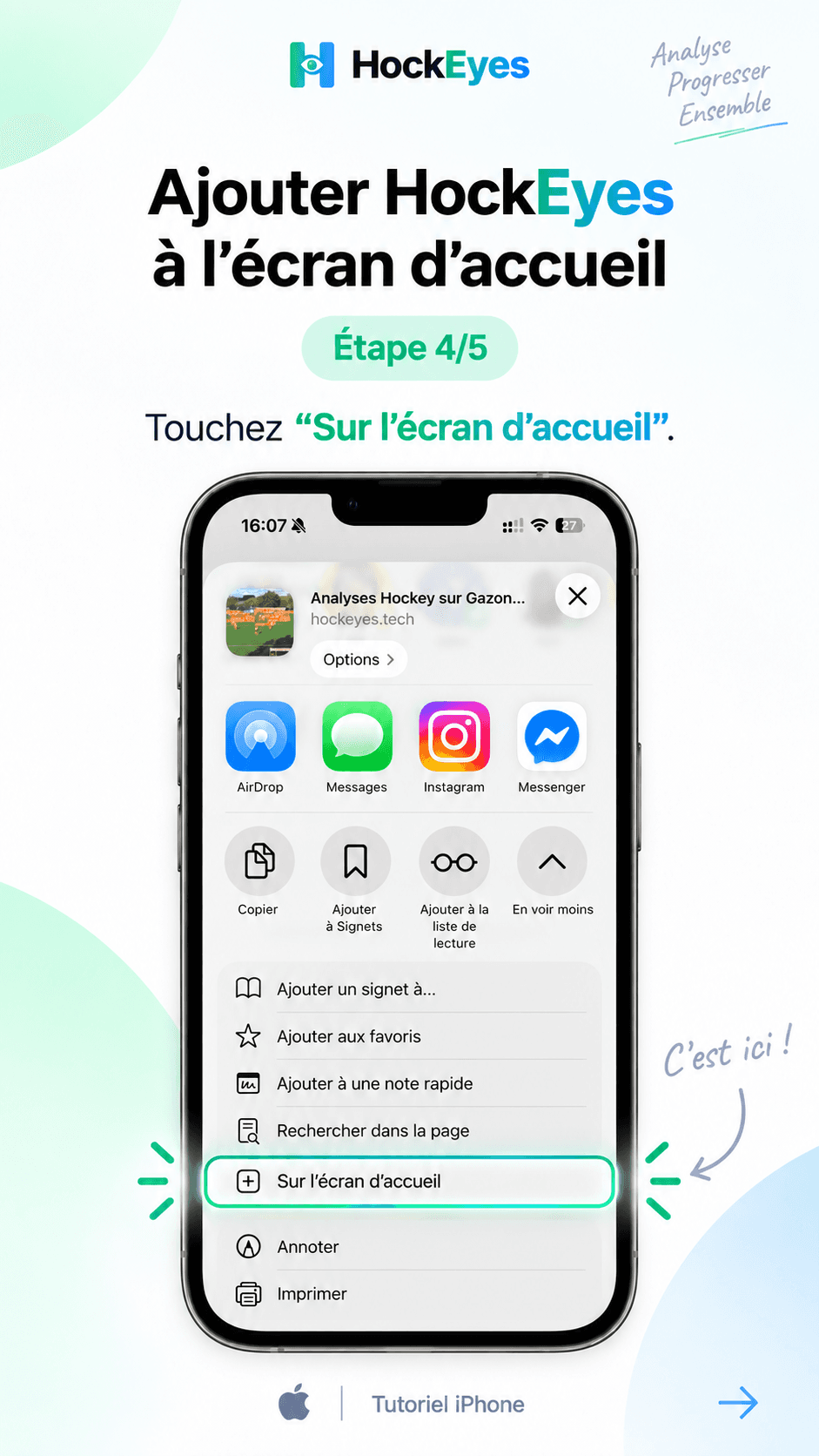
- Scroll down and tap "Add to Home Screen", then tap "Add".
- Open the HockEyes icon from your home screen — it launches full-screen, with no browser bar.
Android
H
- Open hockeyes.tech in Chrome and sign in.
- Tap the menu (three dots) in the top-right corner.
- Tap "Install app" (or "Add to Home screen") — Chrome may also prompt you automatically.
- Confirm, then open HockEyes from your home screen or app drawer.
Desktop (Chrome / Edge)
HockEyes
- Open hockeyes.tech and sign in.
- Click the install icon in the address bar (or the browser menu → "Install HockEyes…") and confirm — HockEyes opens in its own window, without tabs or the address bar.
Staying signed in
Sign in once, in the browser tab you install from — the installed app shares the same session, so it stays signed in the same way a browser tab does.